Starting October 20, 2026, the new NinjaTrader Web becomes the default version of NinjaTrader's browser-based trading platform. For prop traders, that means TradingView-powered charting, an updated design with improved navigation and usability, take-profit and stop-loss bracket toggles, and Manual Lockout.
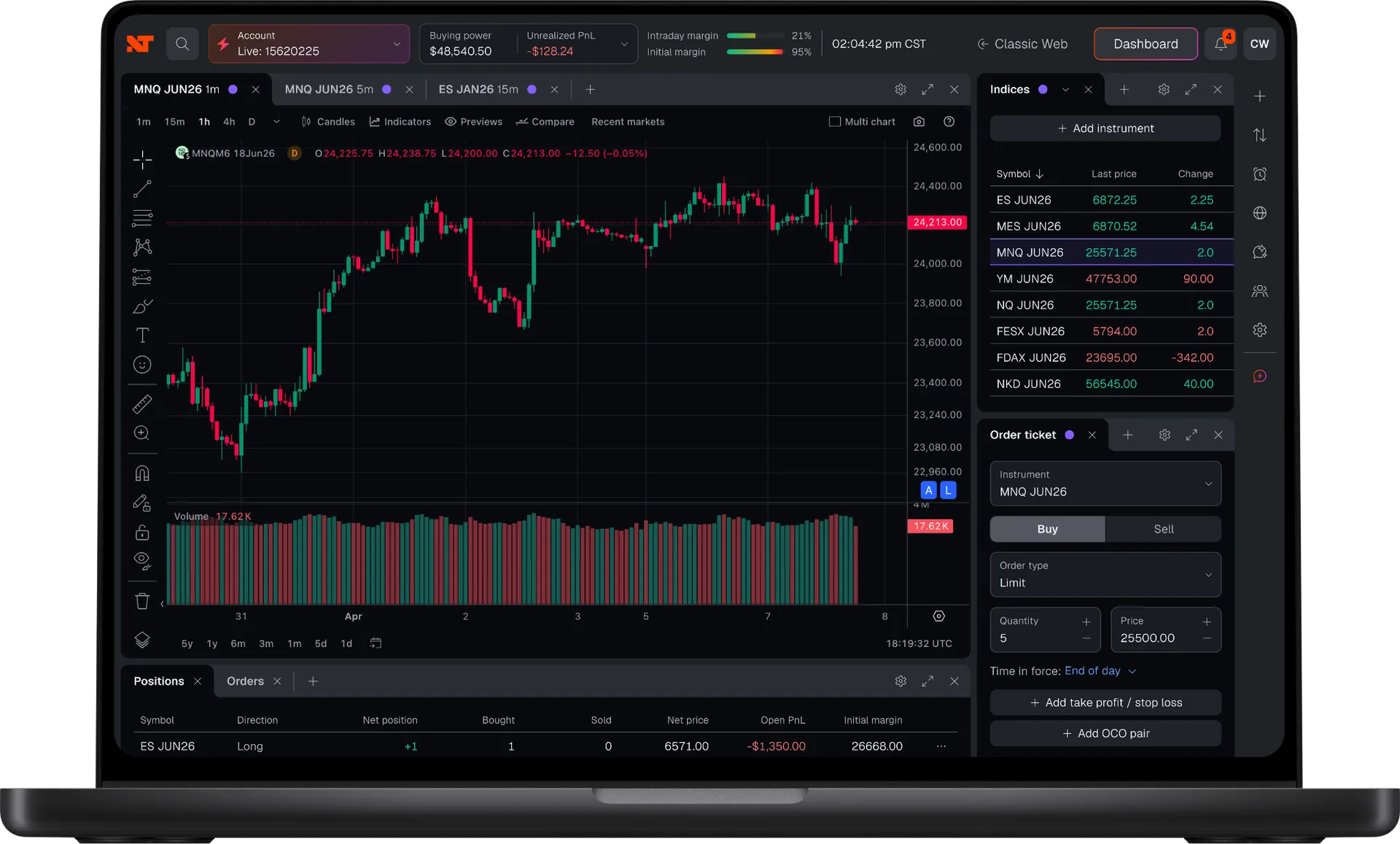
Here's what changes in the NinjaTrader Web platform across charting, design, risk controls, and trading workflows, and which tools are included.
How does TradingView charting work in NinjaTrader Web?
NinjaTrader Web includes TradingView-powered charting built into the platform, including Kagi and Line Break chart types, which are new to NinjaTrader Web and leave time out of the chart, adding to it only when price moves.
NinjaTrader Web includes TradingView-powered charting built into the platform, including Kagi and Line Break chart types, which are new to NinjaTrader Web and leave time out of the chart, adding to it only when price moves.
TradingView-powered charting is one of two chart options in NinjaTrader Web. Classic Chart, the other, gets its own section below.
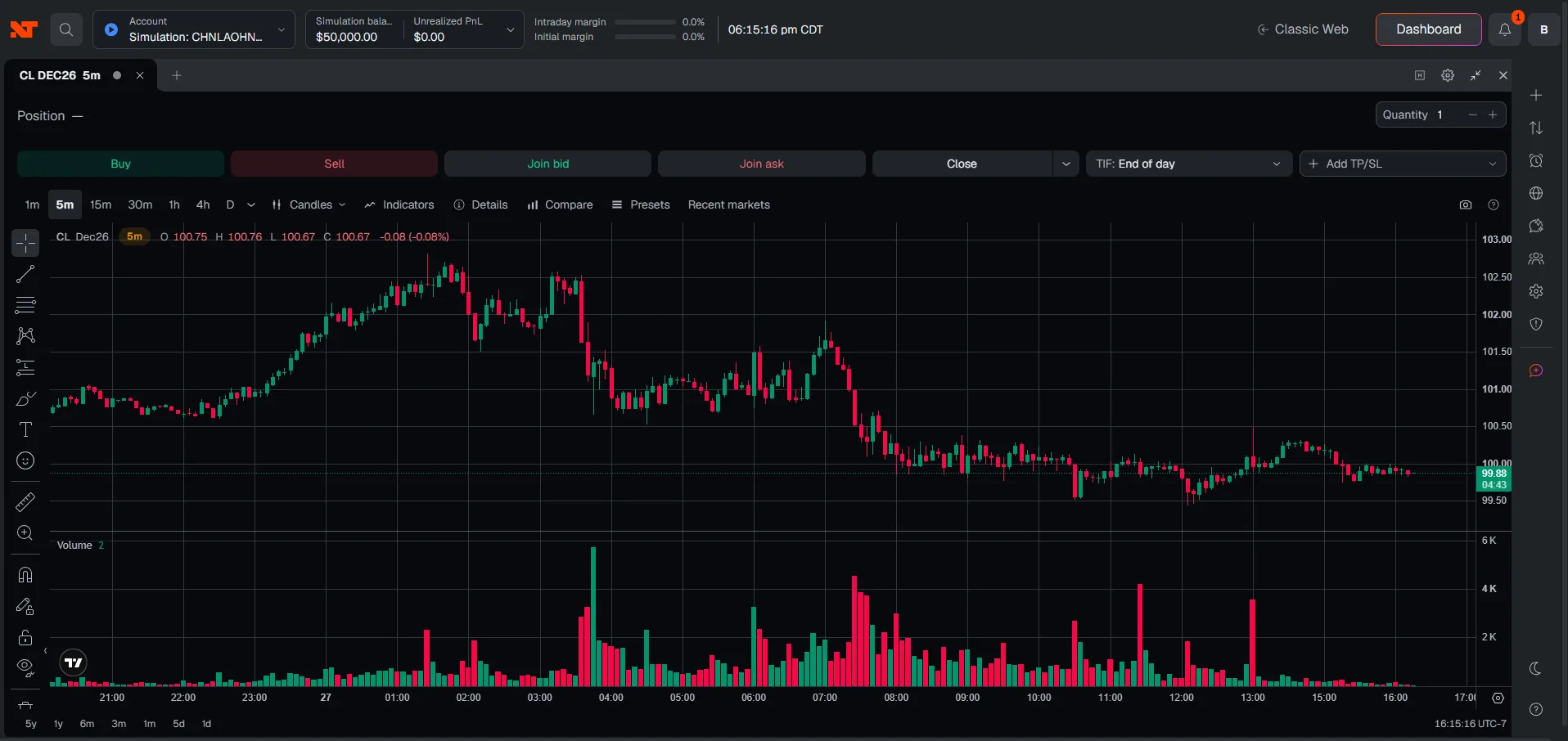
How do Kagi and Line Break charts work?
Kagi and Line Break are chart types that leave time out of the chart. Instead of drawing a new bar for every minute or every day, they add to the chart only when price moves. Both are new to NinjaTrader Web, and they can help you focus on price movement rather than the clock.
How do you switch chart types?
You switch chart types from the chart menu. Pick Kagi or Line Break there, or stay with the chart type you already use.
If you'd rather use the NinjaTrader chart, Classic Chart stays available alongside the TradingView charts.
Can prop traders still use community indicators in NinjaTrader Web?
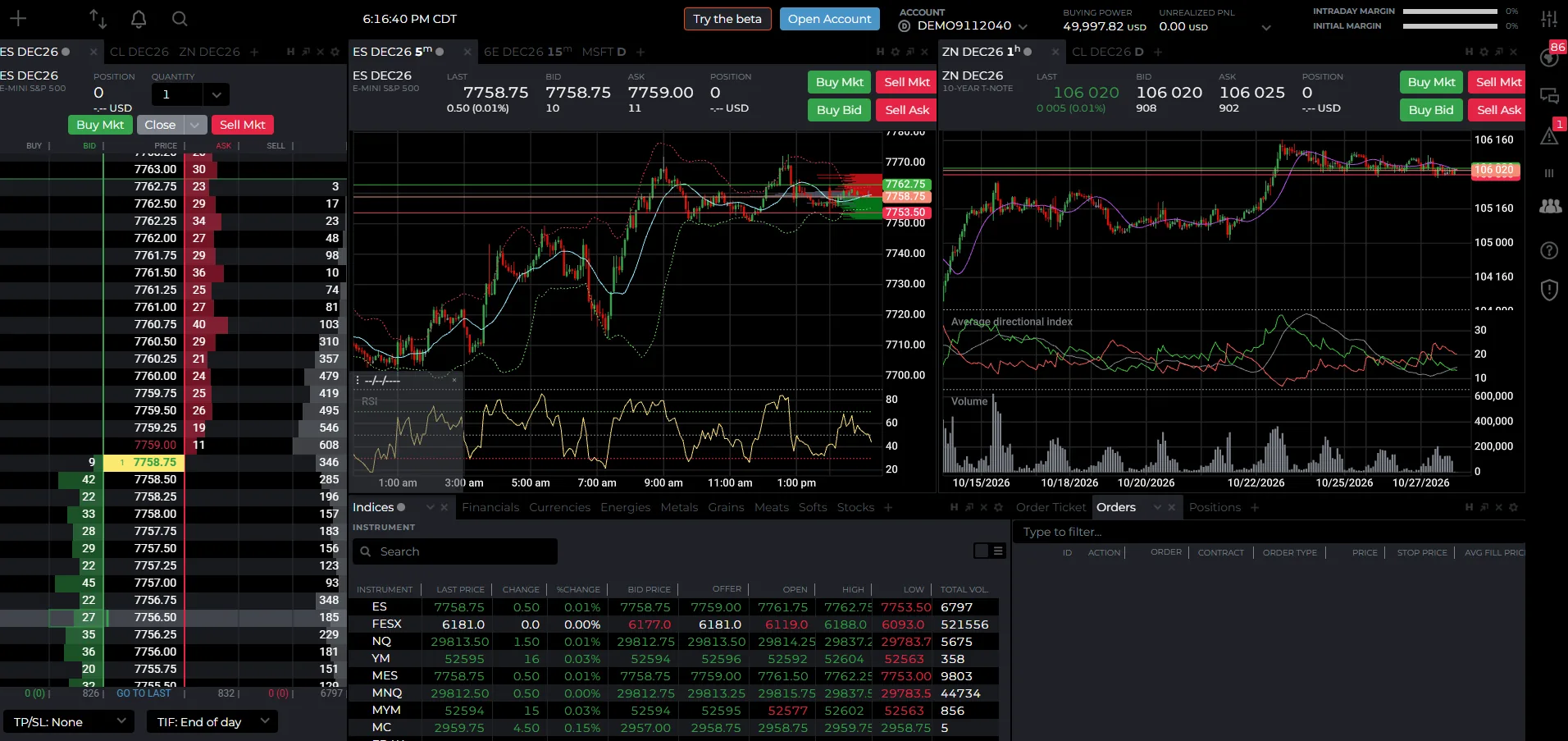
Classic Chart, the NinjaTrader chart, stays available alongside the TradingView charts in NinjaTrader Web and supports adding community indicators, which are custom indicators that other NinjaTrader users build and share.
Classic Chart, the NinjaTrader chart, stays available alongside the TradingView charts in NinjaTrader Web and supports adding community indicators, which are custom indicators that other NinjaTrader users build and share.
If you already use community indicators in your prop trading setup, open Classic Chart to add them. You can switch between Classic Chart and the TradingView charts from the chart menu.
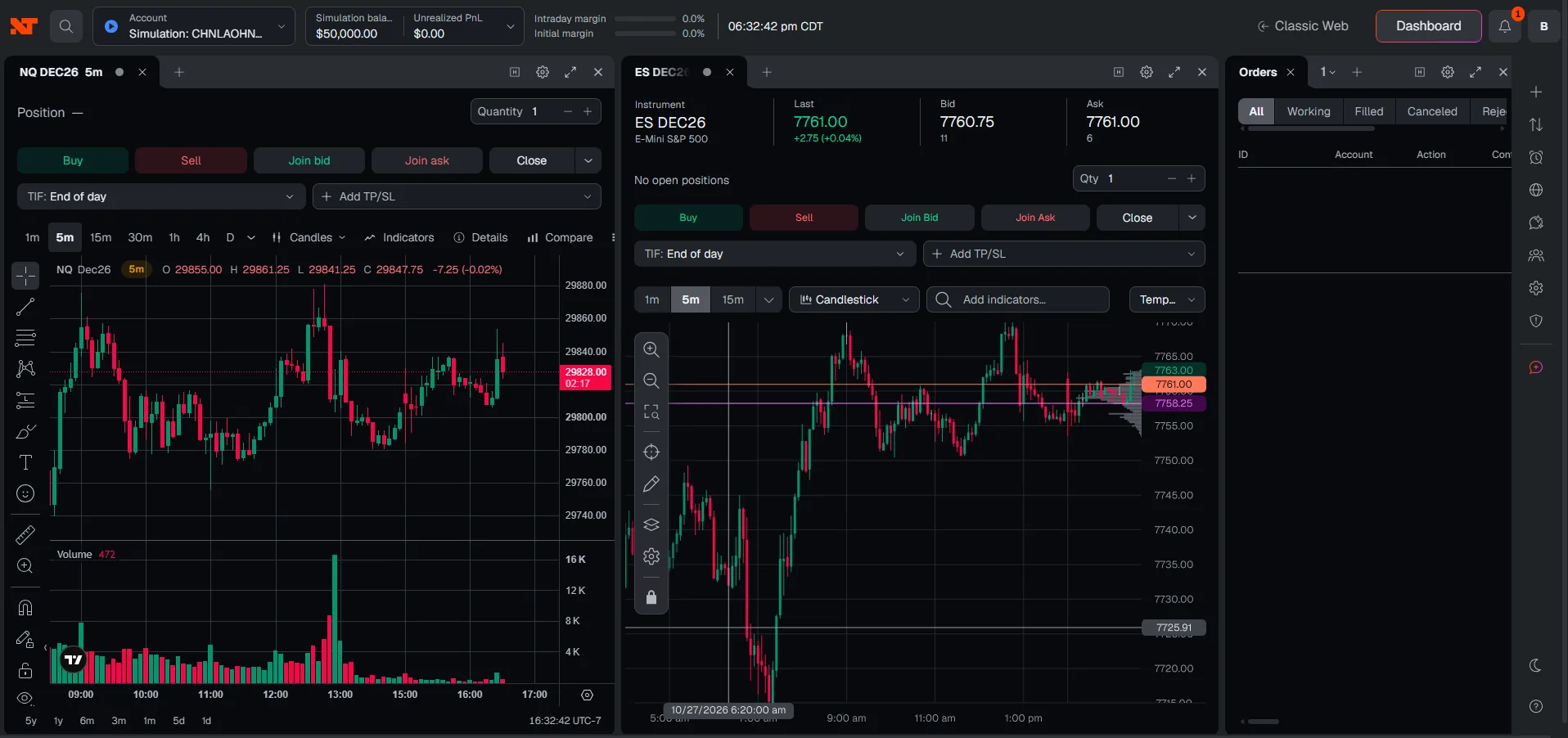
How do bracket toggles work in NinjaTrader Web?
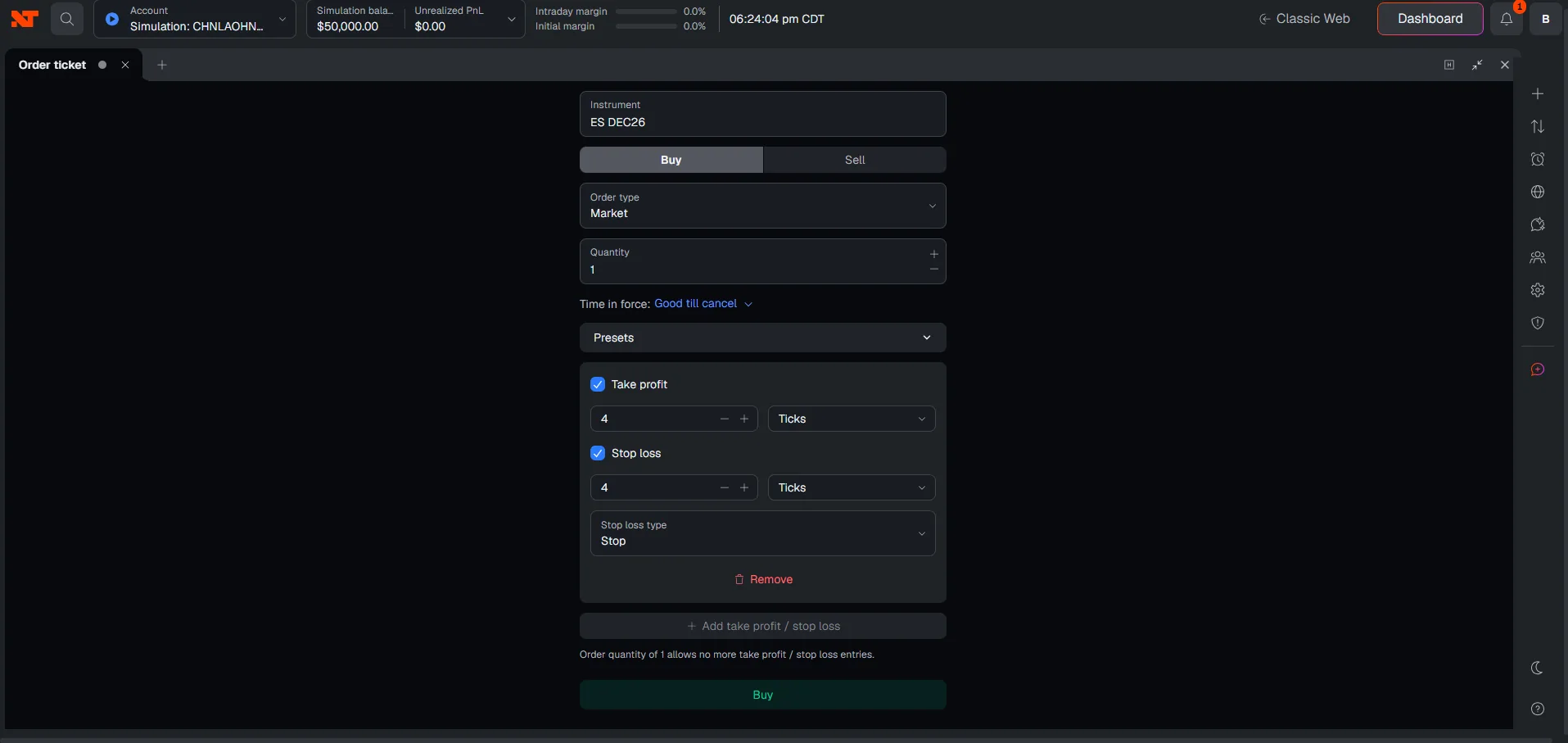
A bracket order is an entry order with a stop-loss order and a take-profit order attached automatically. In NinjaTrader Web, you can add take-profit and stop-loss levels with toggles as you place a trade, without first building an advanced trade management (ATM) strategy.
In NinjaTrader Web, you can add take-profit and stop-loss levels with toggles as you place a trade, without first building an advanced trade management (ATM) strategy.
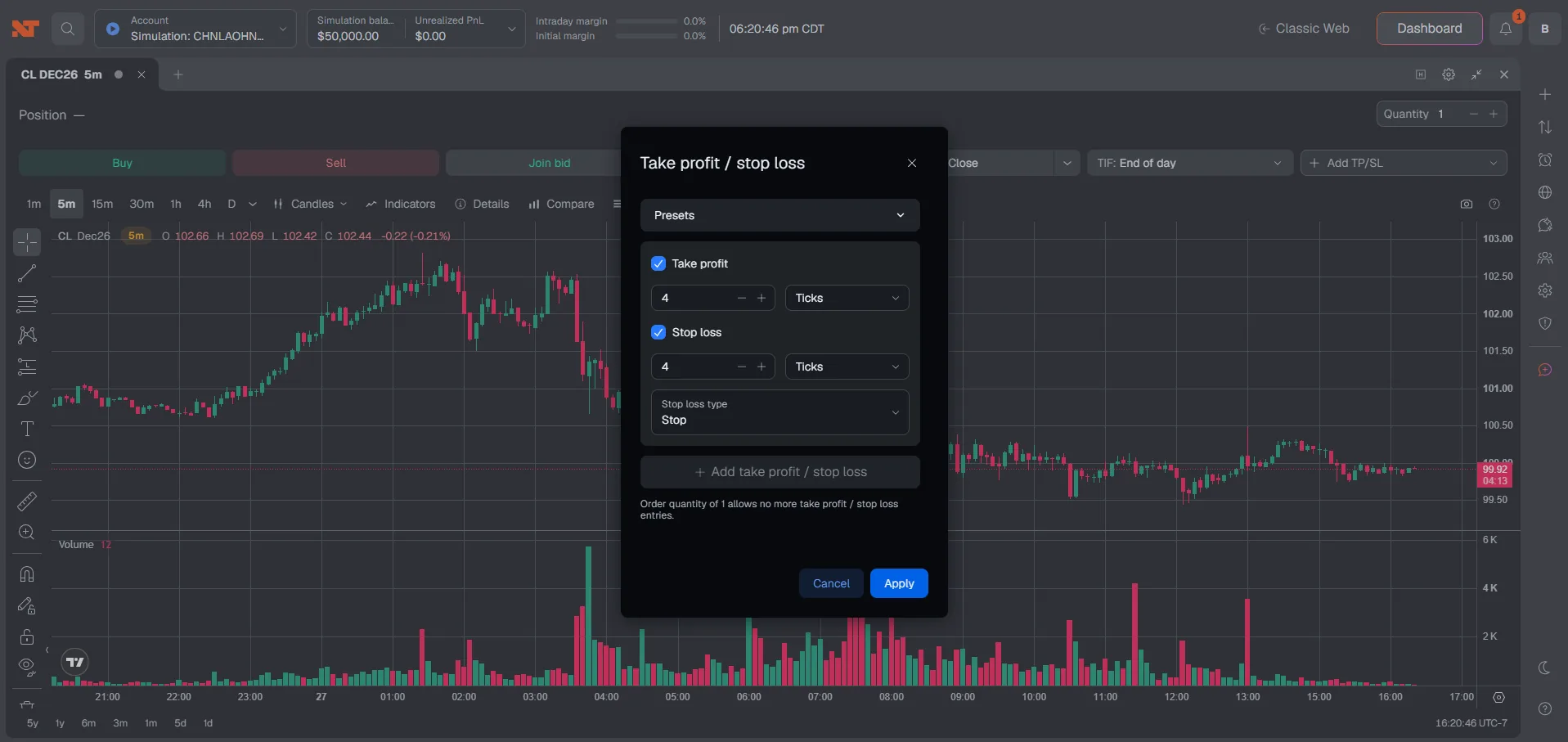
An ATM strategy is a reusable template for how your orders are managed, and ATM strategies remain available in NinjaTrader Web.
How does Manual Lockout work in NinjaTrader Web?
Manual Lockout lets you pause trading on a single account when you decide you need a break. When you lock an account:
- Positions on that account are closed (flattened).
- Working orders on that account are canceled.
- New orders on that account are rejected across platforms.
Your other accounts are not affected, so you can keep trading them.
You choose how long the lockout lasts: 15 minutes, 30 minutes, 1 hour, end of session, or a custom duration up to 24 hours. Each account you lock runs on its own timer.
To lock an account, open the Lockout option, select the account, choose your duration, and click Lock Account. A few things to know:
- Once a lockout starts, you can't cancel it early. You'll need to wait for it to expire or contact your evaluation provider.
- Manual Lockout is available on evaluation accounts.
- Manual Lockout is available in NinjaTrader Web and the NinjaTrader mobile app.
What else is different in the new design?
NinjaTrader Web has an updated design with improved navigation and usability. Navigation is cleaner, and labels are clearer.
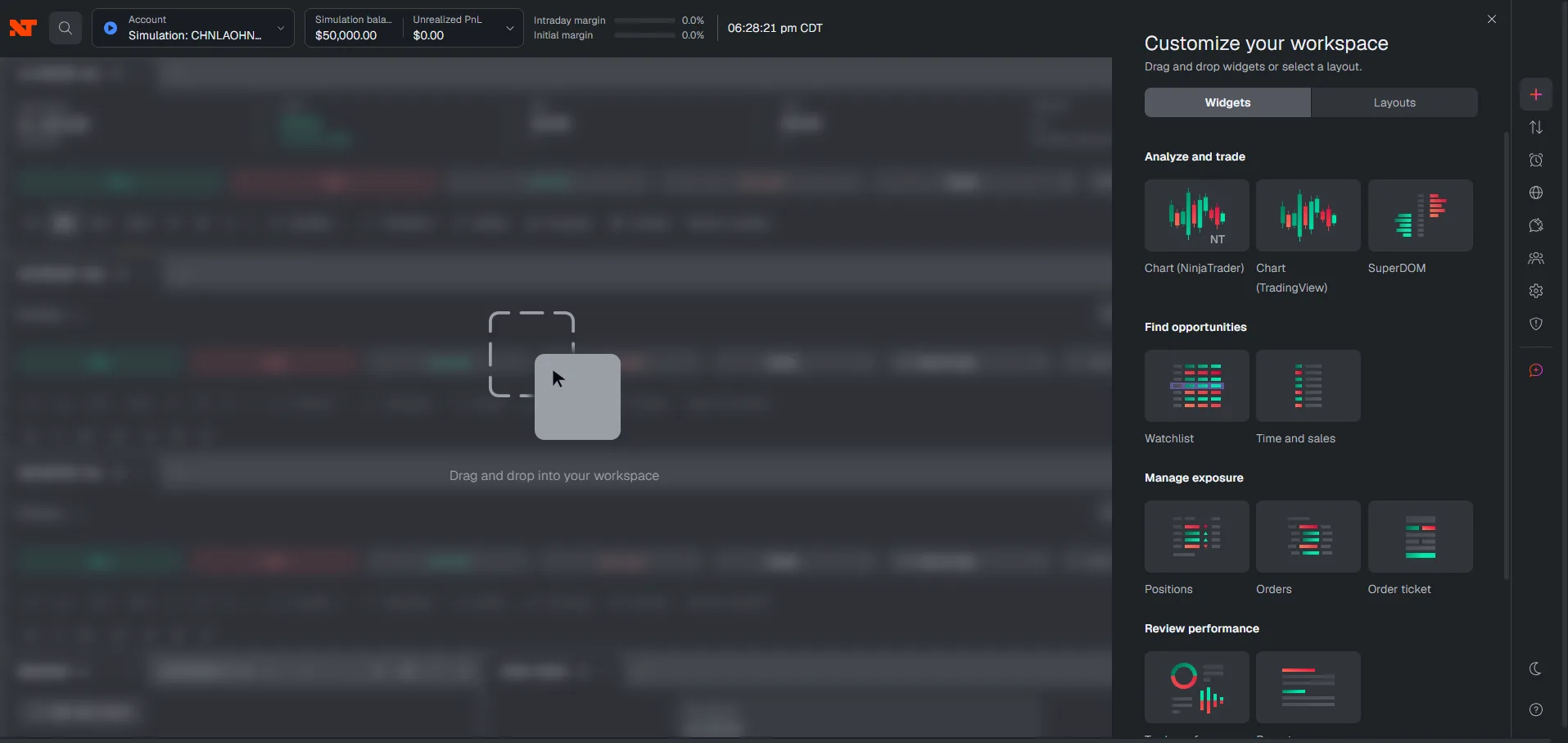
The widget chooser shows icons that look like the actual widgets, with a short description under each, so you can see what a widget does before you add it. NinjaTrader Web also supports light and dark modes.
Which tools are in NinjaTrader Web at launch?
Starting October 20, 2026, these tools are available in NinjaTrader Web. Market Replay and the Demo environment give you a sim environment to practice in.
Simulated trading is based on hypothetical results and does not reflect actual trading. Emotional and psychological factors of real money risk are not replicated. Use simulated trading to learn the platform and markets—not as an indicator of live performance.
| Tool | What it is |
|---|---|
| Market Replay | Replays historical market data |
| Reports | Review your performance summary, order history, and account balance history |
| Trade Performance | Lets you monitor your own trade performance |
| Live, Replay, and Demo selector | Switches between trading live, replaying historical market data, and practicing in a demo environment |
NinjaTrader Web also includes Hotlist, Calendar, Code Explorer, and Order Flow+ support.
How do you get started with the new NinjaTrader Web?
To start using the new NinjaTrader Web, log in to your NinjaTrader account. For questions along the way, connect with NinjaTrader support.
NinjaTrader Web is part of NinjaTrader Desktop, Web, and Mobile. NinjaTrader Web Classic ("Classic Web") remains available from the platform menu if you want to use it.
Ready to explore the new NinjaTrader Web? Find a prop firm today to learn more.
FAQs on the new NinjaTrader Web for prop traders
The new NinjaTrader Web becomes the default version of NinjaTrader's browser-based trading platform starting October 20, 2026. NinjaTrader Web Classic remains available from the platform menu.
Yes. NinjaTrader Web supports adding community indicators in Classic Chart, which stays available alongside the TradingView charts. Community indicators are custom indicators that other NinjaTrader users build and share.
No. NinjaTrader Web lets you add take-profit and stop-loss levels with toggles as you place a trade, without first building an ATM strategy. ATM strategies remain available in NinjaTrader Web if you prefer them.
Kagi and Line Break are chart types in the TradingView-powered charting in NinjaTrader Web. Both leave time out of the chart and add to it only when price moves, and both are new to NinjaTrader Web.
Manual Lockout pauses trading on a single account for the duration you choose, up to 24 hours. Your other accounts are not affected.
Yes. NinjaTrader Web Classic, also called Classic Web, is available from the platform menu. NinjaTrader Web remains the default version.